
Why TV Apps Are a $250B Opportunity Most Teams Ignore
Connected TV (CTV) ad revenue alone crossed $30B in 2026, and the total CTV ecosystem, including subscriptions, transactional video, and smart TV commerce, is projected to surpass $250B globally by 2030. Yet most software teams still treat TV platforms as an afterthought. They build a mobile app, maybe a web app, and then toss a separate contract over the wall to a specialist agency that rebuilds the entire thing in Swift for tvOS or Kotlin for Fire TV.
That approach is expensive. A standalone tvOS app built from scratch typically runs $80K to $150K. Add Fire TV and Android TV to the mix, and you are looking at $200K to $400K in total TV development costs, plus ongoing maintenance for three or four separate codebases. For startups and mid-market companies, those numbers kill TV ambitions before they start.
React Native changes this equation. With a single JavaScript codebase, you can target iOS, Android, Apple tvOS, Amazon Fire TV, and Android TV simultaneously. Shared business logic, shared state management, shared API layers. The platform-specific code (focus engines, remote control handlers, layout adjustments for large screens) accounts for roughly 15 to 20% of your total codebase. Everything else carries over from your mobile app.

The companies succeeding in CTV right now fall into three categories: streaming media services building content consumption apps, enterprises deploying digital signage and dashboard systems on commercial displays, and SaaS products extending their platforms to living room and conference room screens. All three benefit from code sharing with mobile. If your team already ships a React Native mobile app, adding TV support is a 4 to 8 week project, not a 6 month rebuild.
React Native TV Platform Support: tvOS, Fire TV, and Android TV
React Native's TV support has matured significantly since the early community forks. Here is what each platform looks like in practice.
Apple tvOS
Apple tvOS runs on the same UIKit foundation as iOS, which is exactly why React Native works so well on it. The React Native tvOS fork (maintained by the react-native-tvos community) tracks upstream React Native closely, typically within one minor version. As of mid-2026, react-native-tvos supports React Native 0.78+ and includes full Fabric (New Architecture) support. You get the same Hermes engine, the same Metro bundler, and the same development workflow you use for iOS.
The key tvOS-specific APIs include TVFocusGuide for managing focus navigation, TVEventHandler for Siri Remote input events, and TVMenuControl for handling the Menu button. Apple also provides a native focus engine (UIFocusEnvironment) that React Native bridges automatically. When a user swipes on the Siri Remote trackpad, the focus engine determines which element should receive focus next. React Native components participate in this system natively.
Amazon Fire TV and Android TV
Fire TV runs a forked version of Android, so standard React Native Android builds work with minimal changes. The main differences are input handling (D-pad remote vs. touch) and the absence of Google Play Services on Fire TV (you use Amazon's app store and services instead). Android TV is even more straightforward since it is stock Android with a TV launcher.
For Fire TV specifically, you need to handle Amazon's voice remote events, integrate with the Amazon In-App Purchasing API if you sell subscriptions, and follow Amazon's Fire TV app submission guidelines (which differ from Google Play's Android TV requirements). The good news: React Native's Pressable component already supports focus and press events from D-pad remotes. You do not need special libraries for basic remote control interaction.
Choosing Your Approach
If you already have a React Native mobile app, the fastest path is adding TV targets to your existing project. If you are starting fresh, consider using Expo with TV config plugins, which handles most of the native configuration automatically. We will cover the Expo approach in detail later in this guide.
10-Foot UI Design: Layouts, Typography, and Focus States
Designing for TV is fundamentally different from designing for mobile. Your user sits 6 to 12 feet from the screen, holds a simple remote with limited input options, and expects an experience that feels more like a console than a phone. Getting the UI wrong means frustrated users who cannot figure out where their cursor is or how to select content.
Safe Zones and Content Areas
TV screens cut off content at the edges (overscan). The safe zone for critical UI is typically 90% of the screen, meaning you need 5% padding on each side. On a 1920x1080 display, that is 96 pixels on the left and right, 54 pixels on the top and bottom. Apple recommends even more conservative margins for tvOS: 60 pixels top/bottom and 80 pixels left/right for focusable elements.
In React Native, wrap your root layout in a SafeAreaView with explicit padding:
- Horizontal padding: 80 to 96 pixels minimum
- Vertical padding: 54 to 60 pixels minimum
- Spacing between focusable elements: 40 to 60 pixels (so the focus ring has room)
Typography for Distance
Mobile font sizes do not work on TV. A 16px body text that is perfectly readable on a phone is illegible from a couch. The minimum body text size for TV is 28px. Here are the sizes we use in production:
- Hero titles: 72 to 96px, bold weight
- Section headings: 48 to 56px, semi-bold
- Card titles: 32 to 40px, medium weight
- Body text: 28 to 32px, regular weight
- Metadata and captions: 24px minimum
Stick with sans-serif fonts. Apple's SF Pro works well on tvOS. On Fire TV and Android TV, Roboto is the safe default. Avoid thin font weights entirely. Light text on a dark background in a thin weight becomes a blurry mess on most TVs.
Focus State Design
Focus states are the single most important UI element on TV. Since there is no cursor and no touch, the focus indicator is the only way users know where they are on screen. A weak focus state makes your app unusable.
Effective focus states combine multiple visual cues: scale (enlarging the focused element by 1.05 to 1.1x), border highlight (2 to 4px colored border), elevation (adding a shadow), and background color shift. Do not rely on color alone. Use at least two of these cues together. On tvOS, the native focus engine provides a parallax tilt effect on focused cards, and React Native supports this through the TVFocusGuideView component.

Layout Patterns That Work
The most successful TV app layouts follow a few proven patterns. The horizontal rail (a la Netflix) is the dominant content browsing pattern: rows of horizontally scrollable cards, stacked vertically. Each rail represents a category, and users navigate down between rails and left/right within a rail. The hub-and-spoke model uses a persistent left sidebar for top-level navigation with a content area on the right. This works well for apps with distinct sections (Live TV, On Demand, Settings). The grid layout, common for app launchers and content libraries, presents items in a uniform grid with clear row/column focus movement.
Focus Navigation and Remote Control Input Handling
Focus management is the core technical challenge of TV app development. On mobile, users tap exactly what they want. On TV, users press directional buttons to move a "focus cursor" between elements, then press Select to activate. Your app needs to define a logical focus order, handle edge cases when focus reaches the boundary of a section, and provide spatial navigation that feels intuitive.
How the Focus Engine Works
Both tvOS and Android TV have native focus engines. When a user presses a directional button, the platform's focus engine looks at all focusable elements on screen, determines which element is in the pressed direction relative to the currently focused element, and moves focus there. React Native components that are focusable (Pressable, TouchableOpacity, custom components with the focusable prop) automatically participate in this system.
The problem is that the automatic focus engine does not always make the right choice. If your layout has gaps, overlapping sections, or non-uniform grid alignments, the focus engine might skip elements or jump to unexpected locations. This is where TVFocusGuide comes in. TVFocusGuide lets you create invisible regions that redirect focus. For example, if you have a sidebar and a content area, you can place a TVFocusGuide between them that ensures pressing Right from the sidebar always moves focus into the content area's first focusable element, not some random element that happens to be geometrically closest.
Handling Remote Control Events
The Siri Remote (tvOS) and Fire TV remote send different event types, but React Native normalizes most of them. Here is what you need to handle:
- Directional navigation: Up, Down, Left, Right. Handled automatically by the focus engine. You intervene only for custom behavior (e.g., wrapping focus from the last item back to the first).
- Select/Enter: The primary action button. Maps to onPress in React Native. Works out of the box.
- Back/Menu: On tvOS, the Menu button. On Fire TV, the Back button. You must handle this explicitly. Pressing Menu/Back should navigate to the previous screen. On the root screen, it should show an exit confirmation or trigger the native app exit flow.
- Play/Pause: Media control buttons. Use TVEventHandler to capture these events and route them to your video player.
- Long press: Some remotes support long press on Select. Useful for secondary actions (add to favorites, show options menu).
Common Focus Pitfalls
After shipping several TV apps, here are the focus bugs we see most often. First, focus disappearing after a modal or overlay closes: always restore focus to the element that triggered the modal. Second, focus getting trapped in a horizontal scroll rail: set nextFocusDown and nextFocusUp props to manually define escape routes. Third, focus jumping across sections when it should stay within a rail: use TVFocusGuide to constrain focus movement. Fourth, initial focus landing on the wrong element when a screen loads: use the hasTVPreferredFocus prop to set the default focused element.
For teams coming from mobile React Native, the shift to focus-based navigation is the biggest learning curve. Budget extra time for QA on actual TV hardware. Simulator testing misses subtle focus timing issues that only appear on real devices.
Expo SDK 55 TV Support and Config Plugins
Expo's TV support has been one of the most requested features in the ecosystem, and with SDK 55 it has become genuinely production-ready. The Expo team partnered with the react-native-tvos maintainers to integrate TV platform targets directly into the Expo workflow. This means you get Expo's developer experience (EAS Build, EAS Submit, config plugins, OTA updates) for tvOS and Android TV builds.
Setting Up TV Targets with Expo Config Plugins
The setup is straightforward. Install the @expo/tv-config-plugin package, add it to your app.json plugins array, and specify your TV platform targets. The config plugin handles the heavy lifting: it modifies the Xcode project to add a tvOS target, configures the Android manifest for leanback (TV) support, adjusts the build configuration for TV-specific frameworks, and sets up the correct launch storyboard for tvOS.
Your app.json configuration looks something like this: add "tv" to your platforms array, specify whether you want tvOS, Android TV, or both, set the TV-specific bundle identifier (com.yourapp.tv), and configure the TV app icon (Apple requires a layered image for tvOS parallax icons, 400x240 at minimum). The config plugin generates the layered icon assets from your source images.
What Expo Handles Automatically
The config plugin takes care of several things that would otherwise require manual Xcode and Gradle configuration:
- tvOS target creation: Adds a tvOS target to the Xcode project with the correct SDK, deployment target, and build settings.
- Leanback support: Adds the Android TV leanback launcher intent filter so the app appears in the TV launcher.
- Focus engine initialization: Configures the native focus engine bridge for React Native components.
- Asset scaling: Handles @1x asset resolution for TV (TV screens are typically 1x density despite being 1080p or 4K, unlike phone screens at 2x or 3x).
- Hermes configuration: Ensures Hermes is configured correctly for TV platform targets.
EAS Build for TV
Once configured, you build TV apps through EAS Build just like mobile apps. Run eas build with the --platform tvos flag for Apple TV or --platform android with the TV profile for Fire TV/Android TV. Build times are comparable to mobile builds (8 to 15 minutes for tvOS, 10 to 20 minutes for Android TV). EAS Submit also handles app store submission for both the Apple TV App Store and the Amazon Appstore.
One caveat: OTA updates (expo-updates) work on TV the same way they work on mobile, but be careful with update sizes. TV apps tend to have larger image assets, and users on slower networks (some smart TVs still connect over 2.4GHz Wi-Fi) may experience longer update download times. Keep your OTA update bundles under 10MB when possible.
Streaming App Architecture and Real-World Use Cases
TV apps are not just for Netflix clones. The three biggest categories we build for clients are streaming media, digital signage, and smart TV dashboards. Each has distinct architectural requirements.
Streaming Media Apps
A streaming app on TV needs four core systems: content discovery (browse/search UI with horizontal rails), a video player (native player integration, DRM support, adaptive bitrate streaming), user state (profiles, watch history, continue watching), and monetization (subscriptions via in-app purchase or ad-supported tiers).
For the video player, react-native-video is the standard library. It supports HLS and DASH streaming, Widevine and FairPlay DRM, and integrates with the native platform's media controls. On tvOS, it hooks into the TV app's "Up Next" queue. On Fire TV, it integrates with the media session for voice control ("Alexa, pause"). The player setup for TV is identical to mobile except for the controls overlay, which needs to be redesigned for remote navigation instead of touch gestures.
Content delivery architecture for TV apps typically involves a CDN-backed API (AWS CloudFront, Fastly, or Cloudflare) serving content metadata, a separate video CDN for the actual streams (Mux, AWS MediaConvert + CloudFront, or Brightcove), and a recommendation engine that powers the horizontal rails. The client-side architecture uses React Query or TanStack Query for API data fetching with aggressive caching (TV users expect instant navigation between sections) and a global state manager (Zustand or Redux Toolkit) for user session, playback state, and download queue.
Digital Signage and Kiosk Apps
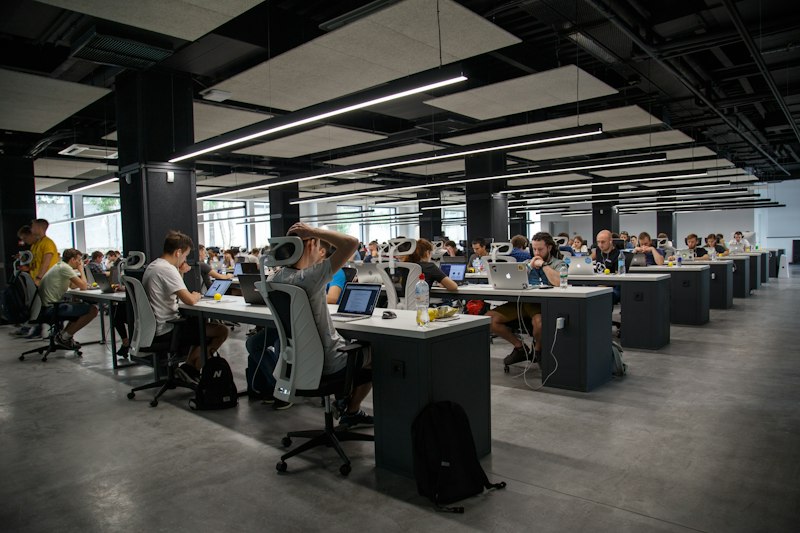
Digital signage is a sleeper use case for React Native TV apps. Companies deploy content on screens in retail stores, airports, hotel lobbies, restaurants, and corporate offices. The screens are typically Fire TV Sticks ($35 to $50 each), Android TV boxes, or commercial-grade displays with built-in Android. React Native is compelling here because the content management system (CMS) powering the signage can share code with a mobile companion app for remote management.
Signage apps need robust offline support (network interruptions should not cause blank screens), scheduled content rotation (show Menu A from 6AM to 11AM, Menu B from 11AM to 3PM), remote device management (push updates, restart apps, monitor device health), and minimal memory footprint (Fire TV Sticks have 1 to 2GB RAM). We typically use expo-file-system for local content caching and a lightweight WebSocket connection for real-time content updates from the CMS.
Smart TV Dashboards
Enterprise dashboards on TV screens, common in operations centers, sales floors, and executive briefing rooms, present data visualization and real-time metrics on large displays. The React Native approach works well because the same dashboard components render on a CEO's iPad and the conference room TV.
Key technical considerations for dashboards: use react-native-svg or Victory Native for charts that render crisply at 1080p and 4K, implement auto-refresh intervals (30 to 60 seconds for real-time data), handle authentication carefully (TV screens in shared spaces should not display login forms with on-screen keyboards if avoidable, use QR code or device code OAuth flows instead), and design for "glanceable" information density that is readable from across a room.
For a deeper comparison of React Native versus other cross-platform options for these use cases, see our React Native vs Flutter analysis.
Performance Optimization for TV Hardware
TV hardware is significantly weaker than modern phones. A 2026 iPhone has more raw processing power than most TV devices. The Fire TV Stick 4K Max runs a quad-core 1.8GHz processor with 2GB RAM. The Apple TV 4K is the most powerful consumer TV box, but even it lags behind current iPhones by two to three generations. Budget TV devices (Roku Express, basic Fire TV Stick) have even less headroom.
Rendering Performance
The most impactful optimization for TV is reducing the number of views on screen. TV UIs tend to have large, complex layouts with many cards, rails, and metadata labels. Each view is a native element that the platform must manage. Keep your total view count per screen under 200 for smooth 60fps performance on mid-range hardware.
Techniques that help:
- Virtualized lists everywhere: Use FlatList or FlashList (by Shopify) for all scrollable content. Never render a long list of items in a ScrollView. On TV, horizontal rails should be FlatLists with horizontal={true}.
- Image optimization: Use expo-image or FastImage with proper caching. Serve images at the exact resolution needed (do not send 4K images if you are displaying 400x225 thumbnails). Use WebP format for smaller file sizes.
- Memoization: Wrap card components in React.memo. TV UIs re-render frequently because focus state changes trigger renders on the focused element, the previously focused element, and their parent containers. Without memoization, a focus change can cascade renders across the entire screen.
- Reduce animation complexity: Use React Native Reanimated for animations, and keep them on the UI thread. CSS-style opacity and transform animations perform well. Avoid animating layout properties (width, height, padding) during focus transitions.
Memory Management
With only 1 to 2GB of RAM on most TV devices, memory management is critical. Aggressively unmount screens that are not visible (React Navigation handles this with unmountOnBlur). Clear image caches when navigating between major sections. Monitor memory usage during development using Flipper or the React Native Performance Monitor. If your app exceeds 300 to 400MB on a Fire TV Stick, the OS will kill it in the background.
Startup Time
TV apps must start quickly because users switch between apps frequently. Target under 3 seconds for cold start on Fire TV and under 2 seconds on Apple TV. Use Hermes engine (always), enable lazy loading for non-critical native modules, defer API calls for off-screen content, and show a branded splash screen with a loading skeleton immediately rather than a blank screen.
Getting Started: Your TV App Roadmap
Here is the practical path from zero to a shipped TV app, whether you are adding TV support to an existing React Native mobile app or building from scratch.
If You Have an Existing React Native Mobile App
Phase 1 (weeks 1 to 2): Set up TV build targets. If using Expo, add the TV config plugin and configure EAS Build profiles for tvOS and Fire TV. If using bare React Native, add the react-native-tvos package and configure Xcode/Gradle manually. Get your existing app rendering on a TV simulator, even if the UI is wrong. Phase 2 (weeks 2 to 4): Implement the TV navigation shell. Replace your mobile tab navigator with a TV-appropriate layout (sidebar or top nav). Add focus management to your existing components. Create a TVCard component that wraps your existing card components with focus states and remote input handling. Phase 3 (weeks 4 to 6): Optimize layouts for large screens. Adjust typography, spacing, and image sizes. Implement horizontal rail layouts for content browsing. Add platform-specific conditional rendering where needed (Platform.isTV). Phase 4 (weeks 6 to 8): Polish and submit. Test on real hardware (rent or buy an Apple TV and Fire TV Stick). Fix focus navigation edge cases. Submit to the Apple TV App Store and Amazon Appstore.
If You Are Building From Scratch
Start with Expo SDK 55 and the TV config plugin. Scaffold your project with a shared architecture that targets mobile and TV from day one. Use a feature-flag system to enable or disable mobile-only and TV-only features. Build the TV UI in parallel with mobile, not as an afterthought. The shared code (API layer, state management, business logic, authentication) writes once and runs on both platforms.
Team and Budget Estimates
A single React Native developer experienced with TV platforms can add basic TV support (one platform) to an existing mobile app in 4 to 6 weeks. A full streaming app targeting tvOS and Fire TV, built from scratch with a shared mobile codebase, requires 2 to 3 developers over 10 to 14 weeks and typically costs $60K to $120K with an agency. Compare that to $200K to $400K for separate native TV builds, and the ROI is clear.
The connected TV market is still in its early innings. Most product categories, from fitness to education to e-commerce, have weak or nonexistent TV presence. If your product fits a living room or conference room screen, now is the time to build. The tooling is ready, the user base is massive, and the competition on TV app stores is a fraction of what you face on iOS and Android.
If you are considering a TV app and want to evaluate whether React Native is the right fit for your use case, book a free strategy call and we will walk through your architecture options.